STANDALONE GUIDE
Quick Battle Guide
Everything you need to prepare a single engagement and command your ships through it. Start with setup, then continue to fighting a quick battle when you deploy.
QUICK BATTLE SETUP
Choose your opponents and your faction
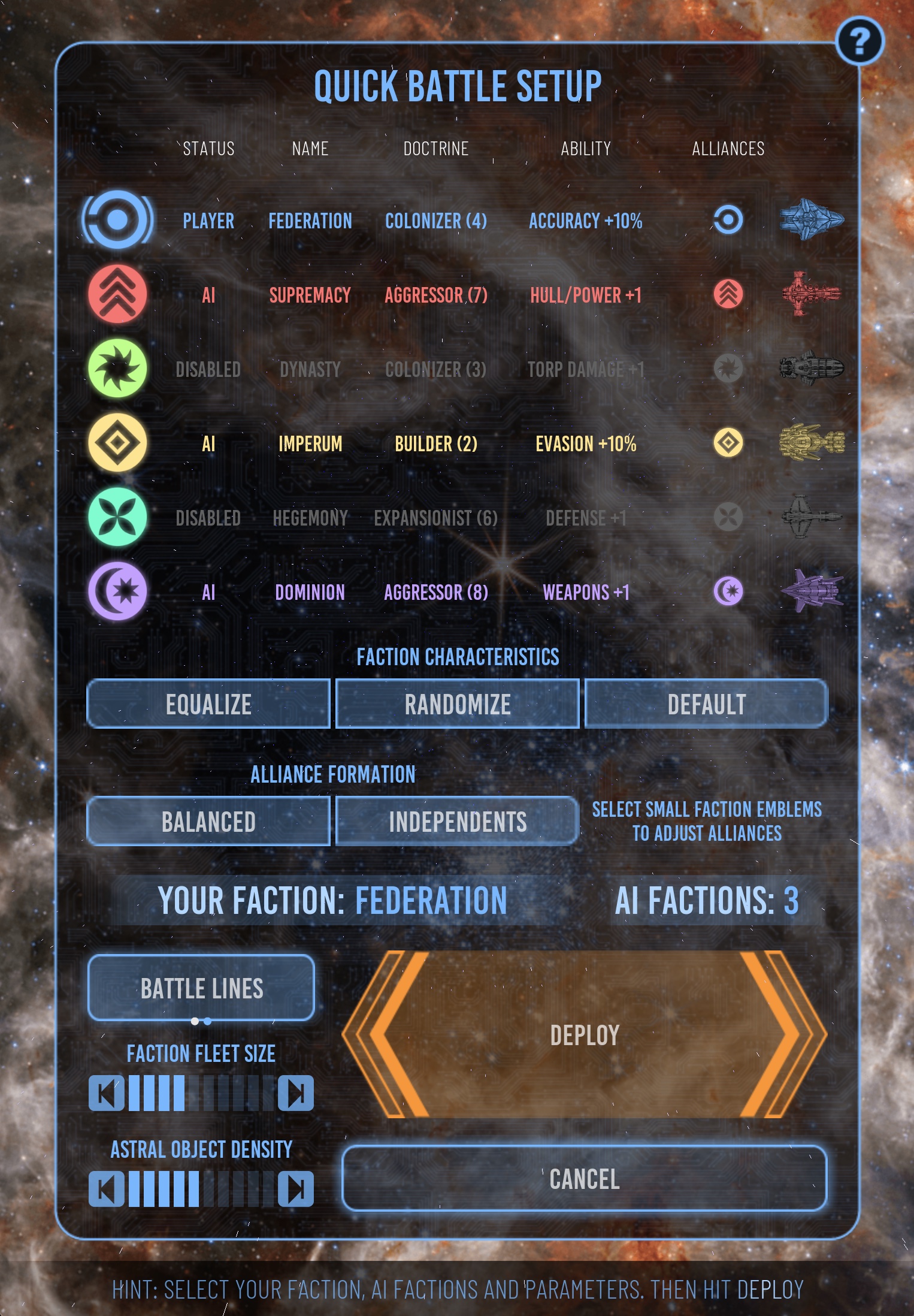
The setup table keeps every roster position visible while clearly identifying which factions will participate.
- 1
Select active factions
Select anywhere on a faction row to add or remove it. At least two factions must participate. STATUS shows PLAYER, AI, or DISABLED.
- 2
Choose your faction
The first active faction is the player. To choose another, deselect the current player, then select the new faction first.
- 3
Review faction character
Check NAME, DOCTRINE, ABILITY, and the ship image. Use Balanced or Independents for a quick alliance arrangement, then select the small alliance-leader emblems to fine-tune it.
Deploy and other setup controls remain unavailable when fewer than two factions are active.
ROSTER CONTROLS
Default, randomize, and equalize
- 1
Default
Restore names, doctrine, abilities, colors, emblems, and ship designs from the faction catalog. Existing alliance assignments are preserved.
- 2
Randomize
Create a fresh arrangement of doctrine, special abilities, and ship designs for the active roster without changing alliances.
- 3
Equalize
Give every faction the player’s aggression setting and remove all special abilities. Alliance assignments remain unchanged.
ALLIANCES
Recognize factions on the same side
Alliance Formation is available when more than two factions are active. Balanced makes the roster even when necessary, then divides it into two equal, randomly led alliances. Independents separates every active faction. With exactly two factions, the alliance controls are disabled and the factions remain opponents.
Select the small emblem on a faction row to fine-tune its alliance. The emblem identifies that faction’s alliance leader; the popup offers the other available alliances or lets a member become independent.
Alliance markers identify factions that share a side on the war map, scoreboard, initiative display, reports, and statistical charts. Allies cannot attack one another, and allied AI ships still act automatically in initiative order.
FACTION CHARACTER
Read the roster
Each row shows the faction’s name, doctrine, special ability, and ship design. PLAYER identifies your side, AI identifies an opponent, and DISABLED means that faction will not take part.
Doctrine reflects aggression: lower settings favor caution, while higher settings favor risk and attack. Ship design identifies appearance; class and system capacity determine what each ship can do.
BATTLE SIZE
Set faction fleet size
Use the Faction Fleet Size rheostat to choose a level from 1 to 10. A higher setting gives each faction more ships. The number of ships represented by a level depends on how many factions are participating.
Every active faction receives the same ordered mix of ship classes for a fair starting force; faction artwork and special abilities still differ. For a first battle, choose two factions and a low fleet-size setting so you can follow each activation and learn the controls.
BATTLE CONDITIONS
Choose formation and object density
Battle Lines
Groups each faction’s ships together with a shared orientation.
Random Start
Scatters starting positions for a less predictable engagement.
Astral-object density
Sets the amount of stars, planets, and other objects on the battle map. Objects create obstacles that affect movement and firing opportunities.
READY TO PLAY
Deploy
Select Deploy to build the battle map and place the ships. Wait for the spinning indicator to finish. The battle then opens for play. Cancel returns to the start screen.
FIGHTING A QUICK BATTLE
Read the battle screen
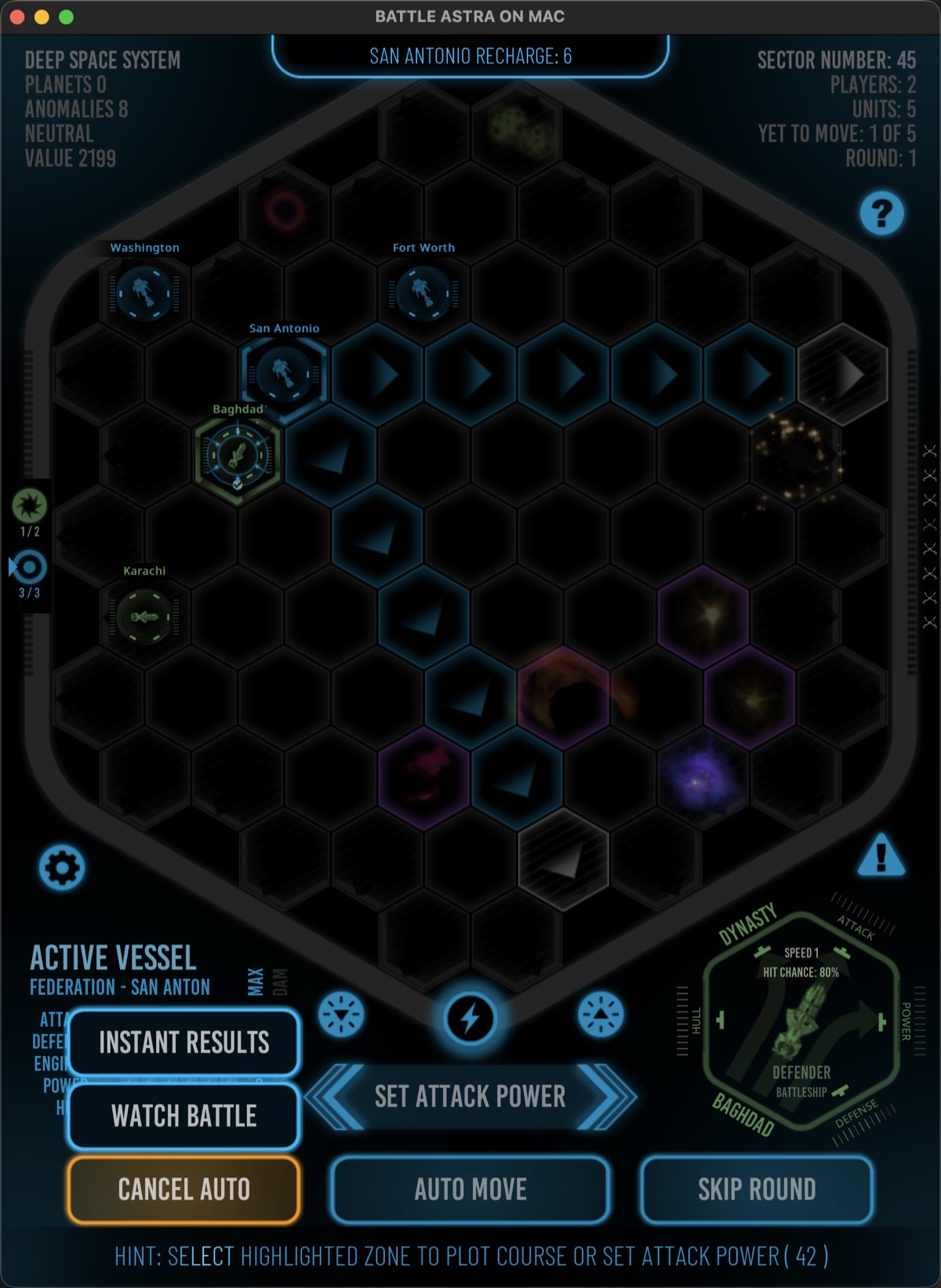
The battle takes place on a hexagonal map containing 73 zones. Select an available unit, choose a valid destination or target, then assign the remaining power and execute the order. Faction emblems show activation order, and the hint line explains the current command.

BATTLE STATUS
Initiative and round information
Initiative order
Faction emblems run top to bottom in arrival order. A pointer marks the active faction, and alliance diamonds identify allied factions.
Moves and ships
Below each emblem, the left number counts unmoved units and the right number counts total units. A checkmark means the faction completed the round; an X means it was eliminated from the sector.
Battle count
Campaign battles can show how many contested sectors remain in the current resolution phase.
Action icon
The lower action display identifies movement, firing, repair, resolving, or the winning faction.
SECTOR STATUS
Ownership and red alert
The large hexagonal sector-status indicator normally uses the owner’s color. During battle it switches to the alert color and pulses when Red Alert is enabled. The lower-right Red Alert icon toggles that pulse.
Astral objects obstruct movement and weapons fire. Change their purple outlines in Battle Settings. The two brightness icons adjust the map display.
COMBAT HUDS
Attacker on the left, target on the right
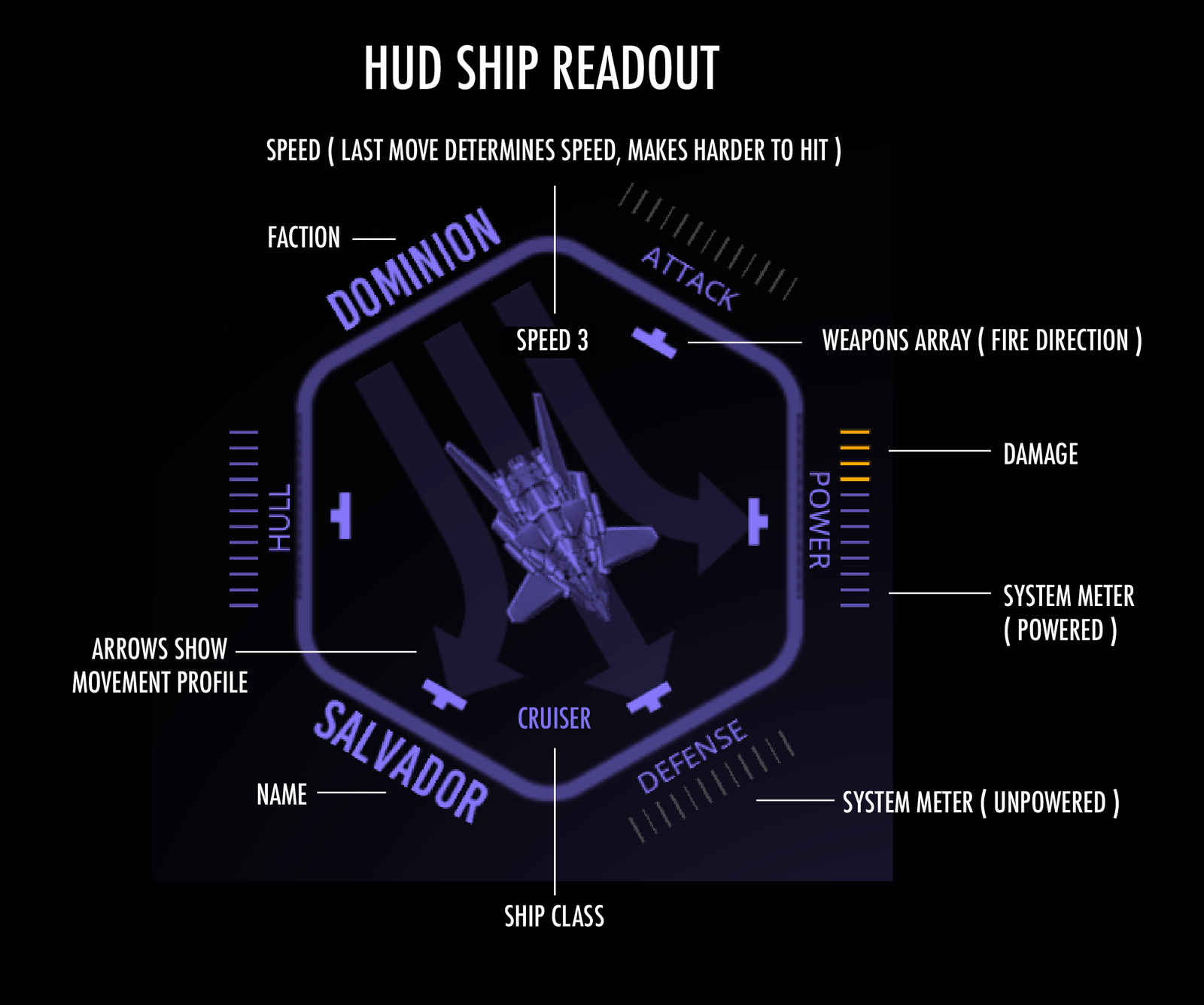
The left HUD shows the active unit with its name, faction, class, and system levels. The right HUD shows a selected unit or the active unit’s current target.
Healthy or charged systems use the faction’s interface color; damage uses its warning color. Select a ship HUD to open the enlarged Ship Inspector, then touch outside to close it.
The enlarged readout shows movement profile, firing arrays, speed, and system condition. Speed reflects the last movement and affects how hard the ship is to hit.
MOBILE SHIP CLASSES
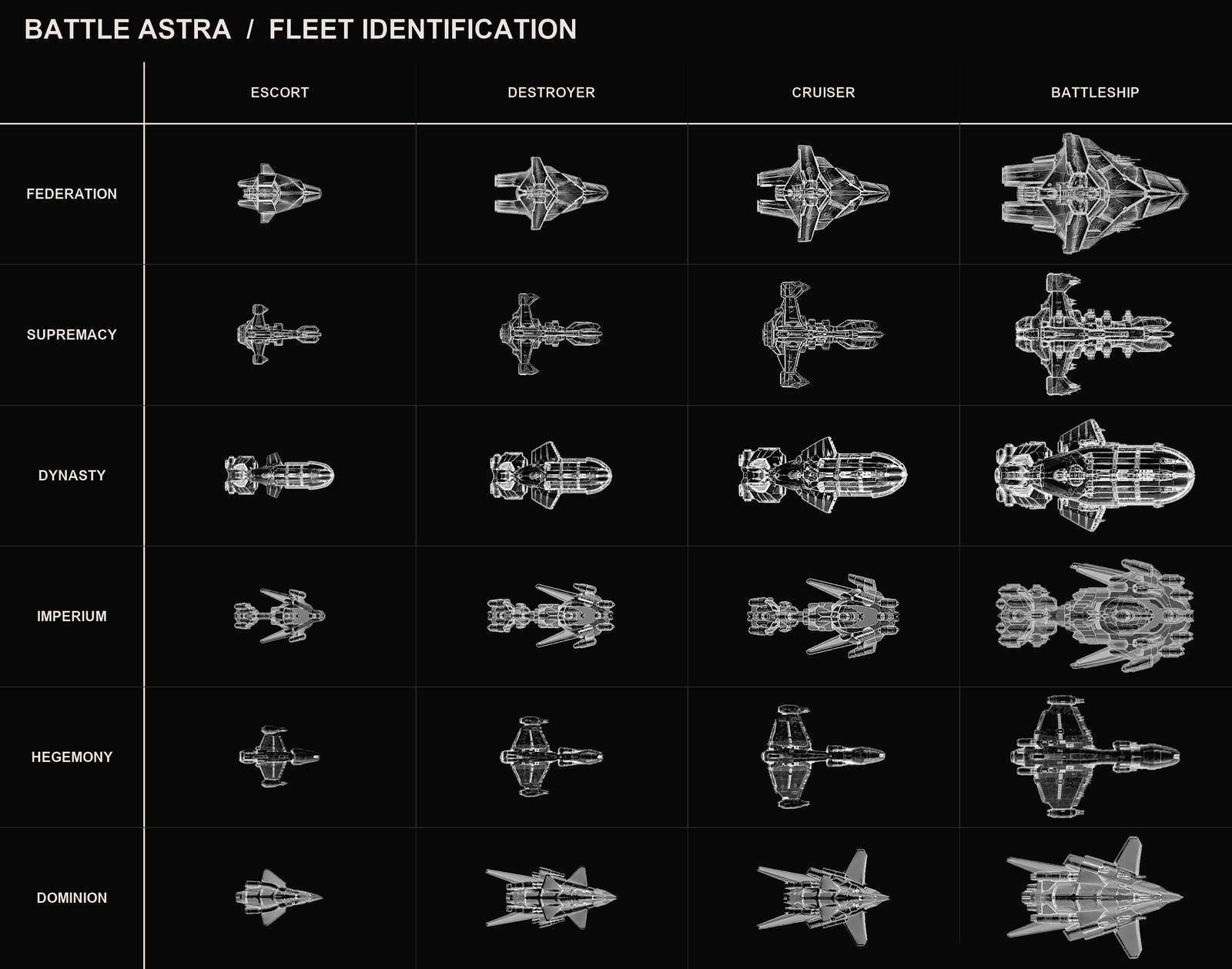
Four levels of mobile warship
Escort
Escorts move in all six directions but fire only forward, forward-port, and forward-starboard.
Destroyer
Destroyers move in the three forward directions. They fire forward, forward-port, forward-starboard, and aft.
Cruiser
Cruisers move in the three forward directions. They fire forward, forward-port, forward-starboard, aft-port, and aft-starboard.
Battleship
The strongest mobile class. Battleships can fire in all six directions but still move only through the forward three directions.
The vessel system model supports levels up to 18, allowing future classes or bonuses without changing the underlying system scale.
SHIP SYSTEMS
Capacity, power, and damage
A system can have a factory maximum, a damaged current maximum, and a powered current level. The HUD marks all three states.
Power core
Provides the energy assigned to other systems during an activation.
Engines
Determine how far the ship can move and whether retreat remains possible.
Weapons
Determine attack strength when a legal target and line of fire exist.
Defense
Reduces or absorbs incoming damage according to the battle calculation.
Hull
Represents structural survival. A ship is destroyed when its remaining hull can no longer sustain it.
ACTIVATION ORDER
Every eligible ship acts before any ship acts again
Faction initiative follows arrival order. Each faction activates one available unit in order, repeating that sequence until all available units have completed the round. Enemy and allied AI units act automatically.
A unit repairs and recharges before acting. A new round begins only after every surviving faction has completed all available unit moves.
Hold Skip Round to end your faction’s remaining activations for this round. Unused power remains assigned to defense.
POWER ALLOCATION
Choose the active configuration
Choose a valid destination first. Engine power is committed to that planned move and is unavailable for weapons and defense during the activation. If a target is already available, you may fire without moving.
When a target is available, Set Power offers Set Attack Power or Defend Only. Defend Only executes the planned movement while keeping the remaining power in defense.
Set Attack Power opens the allocation panel. Select a level on Attack or Defense; any remaining available power goes to the other system when possible. The X control sets that system to zero and reallocates as much power as the other system can accept; overflow remains unallocated in the core.
Target defense, speed, and distance affect the displayed chance to hit. Weapons power determines displayed maximum damage. The panel shows available power after damage and movement.
The confirmation button reads Move Only, Move and Attack, Turn and Attack, Defense Only, or Attack to match the plotted order. Select it to execute. Cancel restores the previous allocation and returns to the battle map.
PLOT A COURSE
Movement, facing, and speed
- 1
Activate a unit
Select one of your available units. Its valid destinations and targets are highlighted.
- 2
Choose a legal destination
Choose a highlighted destination along a straight line on the hex grid. Movement markers account for class, facing, occupied zones, and astral objects.
- 3
Review targets
Targets available from the planned destination receive crosshairs. Moving consumes power that cannot then be assigned to weapons or defense.
- 4
Commit movement
Use Set Power to choose attack allocation or Defend Only and execute the planned order. If a target is already available, you may fire without moving.
Turning in place produces speed 0. Moving one zone produces a 10-percent speed modifier, moving two produces 20 percent, and each additional zone adds another 10 percent.
ESTABLISH A SHOT
Targeting and line of fire
Select an enemy to inspect it and display the best available path or shot. In-range targets use crosshairs and a pulsing dotted line toward the defender. Out-of-range enemies remain available in the target HUD for inspection.
A scan stops at the first ship encountered along a firing line. A ship cannot shoot through another ship to reach a target behind it.
The firing direction must match a gunport available to the attacker’s class and facing. Astral objects and occupied zones can prevent an otherwise favorable shot.
RESOLVE THE ATTACK
Hit chance, defense, and damage
Target defense, target speed, and distance affect the displayed hit chance. Weapons power determines the displayed maximum damage. Movement and weapons fire follow straight lines on the hexagonal grid.
Weapon fire can appear as a salvo while damage messages catch up behind the animation. The event log records the total damage from the attack rather than listing every torpedo separately.
Damage reduces system capacity and can destroy the ship. The attacker and defender HUD diagrams update as the result is applied.
FINAL COMMAND
Self-destruct as a tactical weapon
Hold the warning-colored Self-Destruct icon to destroy the active mobile ship. Stationary units, including outposts and star bases, cannot self-destruct.
The blast equals the ship’s undamaged factory power capacity plus one roll from 1 through that same capacity. Current power damage does not weaken the explosion. The shared total is applied to every adjacent mobile ship, regardless of faction, after shield reductions.
Friendly ships can suffer collateral damage or be destroyed, but friendly-fire losses do not award kill points. Because the blast can remove the final opposing ship, battle victory and end conditions are checked immediately after the damage is resolved.
One shared blast total
Add factory power to one roll from 1 through factory power, then apply that total to every adjacent mobile ship. Default ranges are Escort 7–12, Destroyer 10–18, Cruiser 13–24, and Battleship 16–30; Hull / Power ability bonuses raise the range.
Friend and foe
Faction does not protect a nearby ship. Shields absorb the blast before remaining damage is applied.
Tactical AI choice
AI factions weigh potential damage, friendly risk, ship condition, and aggression before self-destructing in visible or hidden battles.
Immediate resolution
The battle checks for victory or completion as soon as the explosion and resulting destruction are resolved.
The active ship is always destroyed. Before committing, inspect every adjacent zone and compare the possible enemy damage with the risk to friendly ships.
QUICK BATTLE AUTOMATION
Give control to the AI
Auto Move authorizes the AI to make one move with an available unit.
In a Quick Battle, hold Auto Resolve to give the AI control of your faction. It changes to Cancel Auto. Select Cancel Auto to regain control as soon as the current action is complete.
Hold Skip Round to end your faction’s remaining activations for the round. Unused power remains assigned to defense.
LEAVING THE FIGHT
Resign a quick battle
Open Battle Settings and select Resign Battle to concede. The game asks for confirmation before ending your participation.
BEFORE ACTIVATION
Repair and recharge
A unit repairs and recharges before its activation. Each unit can repair up to three damaged system points when it activates.
Mobile ships can repair hull only in a sector containing a friendly star base. Stationary defenses can repair their own hull. Repair and recharge results appear in the event log.
BATTLE HISTORY
The event log
The top event log displays the newest battle event, including round changes, total attack damage, repairs, recharges, retreats, and destroyed ships.
Select the log to open its drawer and review up to thirty recent events. Select outside the open drawer to close it before interacting with the map.
BATTLE SETTINGS
Customize the tactical display
Zone Messages toggles brief messages on selected zones. Wave Scan toggles the animated movement and weapons-coverage scan. Ship Names cycles between names, classes, and unmarked ships.
Object Outline toggles purple astral-object outlines. Zone IDs cycles between no labels, numbers, and coordinates. Combat Text toggles damage, repair, and event feedback; Back Stars toggles the moving starfield.
Battle Move Speed changes animation duration only, not movement range or combat rules. Voice, Music, and Sound Effects are synchronized with the other settings pages. Close Panel or a touch outside returns to the map.
TUTORIAL CARDS
Dismiss, hide, and restore tutorials
Select Close or touch outside to dismiss a tutorial card. Select Do Not Show This Message Again before closing to hide only that tutorial.
If the card is longer than its window, drag the text or the right-hand scrollbar to read the rest.
Reset Tutorial in Game Settings restores every hidden tutorial. It is disabled when none are hidden. The bottom hint continues to offer guidance for the current situation, and Field Manual opens help in your browser.
BATTLE RESULTS
Victory and inspection
When the battle is complete, the victory screen identifies the winner and displays the results.
Use Inspect when offered to study the final positions and damage before proceeding. On the victory screen, Pause stops the countdown and Resume continues it. When finished, return to the start screen to prepare another quick battle.