CHAPTER 05
The War Map
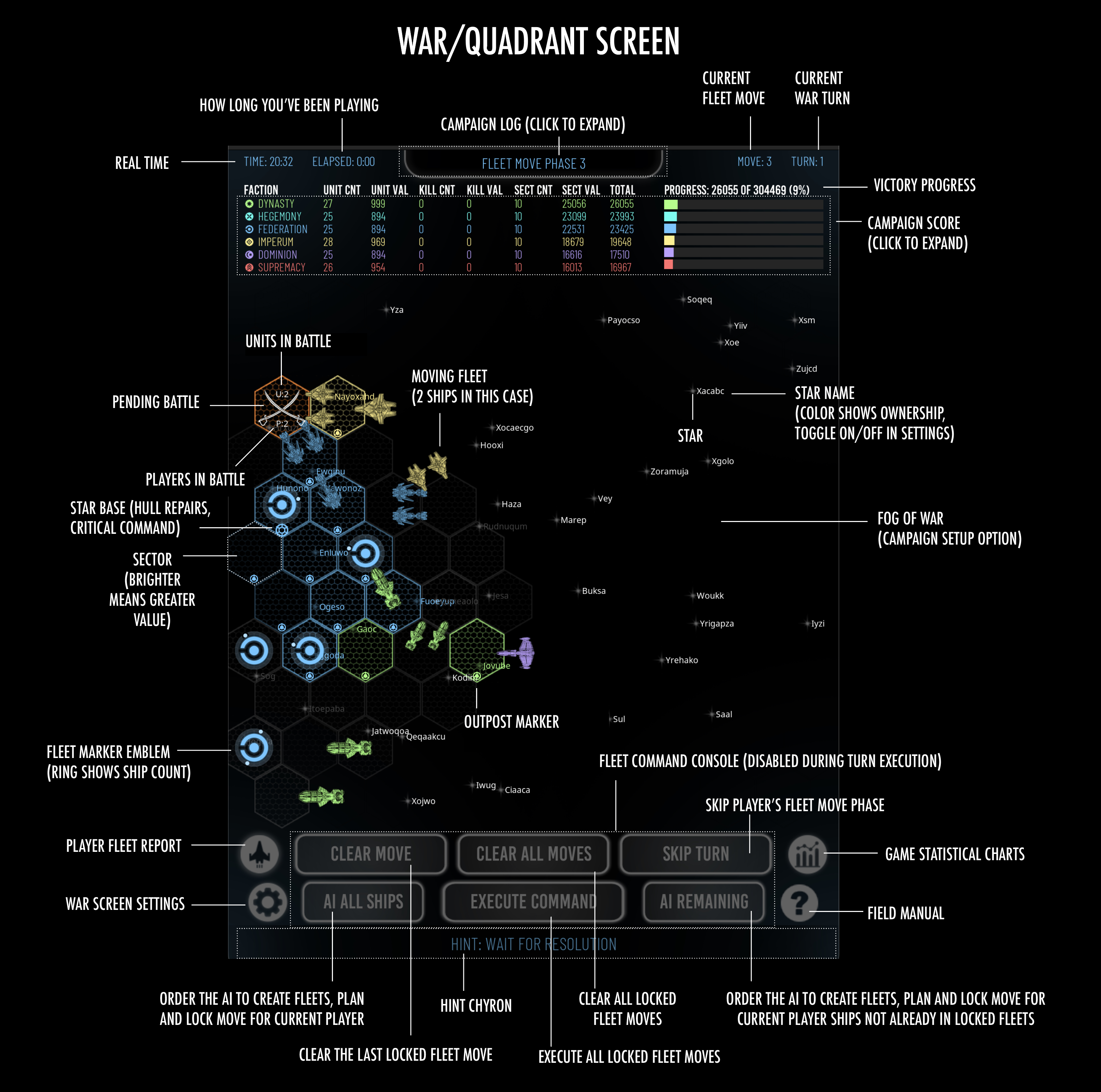
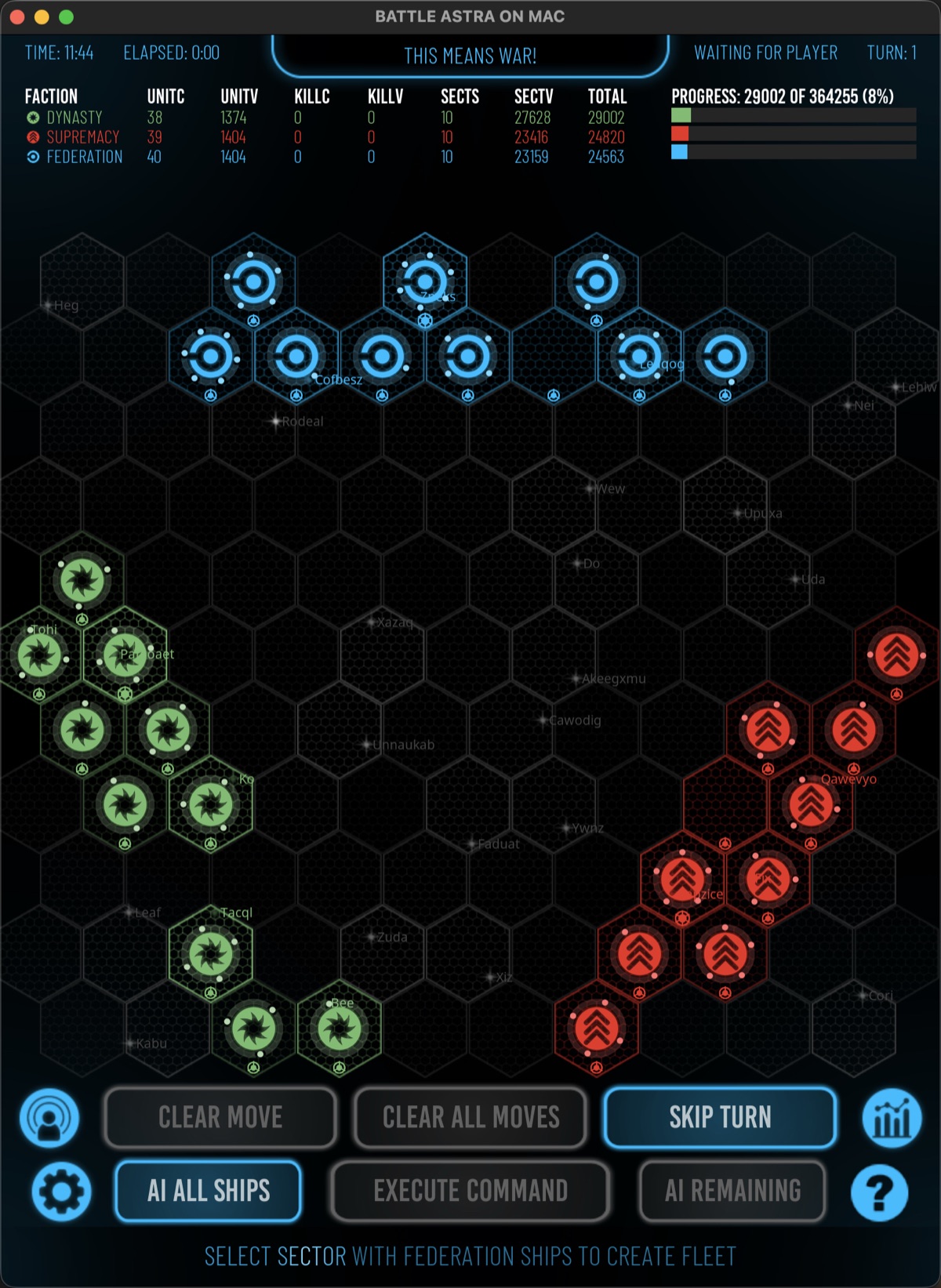
The war map is the strategic command screen: 115 sectors, every surviving faction, every fleet order, and the race toward victory are visible here.
SCREEN GUIDE
Your campaign command screen
WAR STATUS
Read the campaign header
Time and elapsed
Device time and total campaign time appear at the upper left.
Current phase
The center status and event log identify the current turn, fleet-move phase, battle phase, neutral-claim phase, scoring, or ship construction.
Move and turn
The upper right shows the campaign turn and whether the game is waiting for player orders or resolving the war.
VICTORY PROGRESS
The war scoreboard
The scoreboard compares unit count and value, kill count and value, sector count and value, total score, and victory progress. Total combines unit, kill, and sector values. Controlled-sector value is awarded again after each completed turn. Alliance markers appear at the far right.
Units
The number of surviving units currently held by the faction.
Unit value
The combined current value of the faction’s surviving units.
Kills
The number of enemy units destroyed by the faction.
Kill value
The value earned from destroyed enemy units.
Sectors
The number of sectors currently controlled by the faction.
Sector value
The combined value of the faction’s controlled sectors.
Select anywhere on the scoreboard to open the expanded score table, which spells out each category and includes doctrine and victory progress.
THE REGION
Read sectors and ownership
Each hex on the quadrant is a sector containing a randomly generated star system and other astral objects. System names are randomly generated too.
Astral objects determine sector value. More brightly colored sectors are worth more; color identifies ownership. Alliance diamonds identify factions on the same side. Crossed swords mark a pending battle.
Select a sector with your units to open the fleet menu. Select a neutral, allied, or enemy sector without friendly ships to open the Sector Inspector without advancing the war.
DRAWERS AND REPORTS
Inspect the war without leaving it
War event log
Shows turn phases, battles, victories, captures, and other campaign events. Select it to expand the recent history.
Statistics
Charts unit count, sectors controlled, and score over the completed turns of the campaign.
Ship report
Lists ships and stations by class, name, hull condition, faction, unit count, and unit value.
War settings
Controls saving, fleet-movement speed, audio, display preferences, and retirement from the campaign.
TURN PHASES
Follow the map in real time
- 1
Fleet move phase
Execute Command lets AI factions plan, then moves all fleets in waves. Faction order is randomized for each movement wave.
- 2
Battles engaged
Contested sectors are marked and resolved one at a time.
- 3
Additional move phases
If the turn allows more fleet movement, planning and battle resolution repeat.
- 4
Neutral claims
Eligible unopposed sectors receive ownership and outposts after movement and battles are complete.
- 5
Scoring and victory check
Controlled-sector value is awarded, the score and history displays update, and the game checks the selected victory condition before construction begins.
- 6
Construction and next turn
Each surviving faction receives temporary build points from its owned stars. After the player commits or skips construction, the next campaign turn begins and the autosave is refreshed.
END-OF-TURN SHIPYARD
Build ships with star-system income
Each build round grants one temporary build point for every star system the faction owns. Unspent points expire when the round ends. AI factions use the same points, costs, berth rules, sector capacity, and faction capacity as the player.
Select an open berth around the star base, then choose a class: Escort costs 1 point, Destroyer 2, Cruiser 4, and Battleship 6. A wrench marks a planned build. Select the same planned berth again to remove it, or choose another class to replace it; Clear Docks removes every plan.
Builds require an open starbase-adjacent zone. Ships and astral objects can block berths. The base sector permits no more than six mobile ships from one faction, and the faction’s active mobile fleet cannot exceed 150 percent of its starting size.
Clear Sector opens an evacuation planner. Assign individual ships to eligible owned neighboring sectors, review projected fleet counts, then hold Accept Moves to commit the validated batch. Cancel returns to the unchanged shipyard. Commit Builds constructs every valid plan; Skip Build spends nothing. Either action begins the next campaign turn.
Class costs
Escort, Destroyer, Cruiser, and Battleship costs rise with class strength.
Base-sector limit
At most six mobile ships from one faction may occupy the star base’s campaign sector.
Faction fleet ceiling
A faction may operate no more than one and one-half times its starting active mobile fleet.
FOG OF WAR
Exploration and detection
With Fog of War enabled, only explored sectors and sectors within sensor range reveal full information. Larger ships and more units together increase detection range. The human view uses the strongest current exploration and detection from every allied faction, while each faction’s saved exploration record remains separate. Allied fleets are always visible to you, but their private movement arrows remain hidden. With fog disabled, the entire quadrant is visible.
FLEET INVENTORY
Use the Ship Report
The report groups ships, outposts, and star bases by class and lists each unit’s name and remaining hull systems. Drag the report or its scrollbar to see additional rows.
Select an emblem to inspect your faction or an allied faction. Other factions’ reports are unavailable. Alliance diamonds identify shared sides. Select Close or touch outside to return to the war map.
CAMPAIGN HISTORY
Read faction statistics
Charts compare unit counts, controlled sectors, and total scores across completed turns. Faction-colored keys identify each line, alliance diamonds identify shared sides, and the turn range appears below the final chart. Select Close or touch outside to finish.