CHAPTER 01
Getting Started
Choose a single tactical engagement, begin a complete campaign war, or return to a campaign already in progress.
THE CONFLICT
Battle Astra at a glance
Battle Astra is a digital, space-based strategy war game in which a player competes for military domination or a points victory against as many as five AI factions.
The game spans a hexagonal region of 115 sectors comprising thousands of tactical zones. Factions capture sectors for points, earn points in battle, and maneuver ships across the region in fleets.
Fleet orders are planned before they are executed. When opposing fleets occupy the same sector, they battle or attempt to retreat.
Battles are conducted at the zone level, where astral bodies create obstacles and help determine the value of a sector. Movement, distance, facing, attack power, and defense all shape the outcome.
Campaign Setup lets you choose Score or Elimination mode. Either campaign also ends when only one faction or alliance remains, and the campaign ends immediately if your faction is eliminated. A quick battle ends when one side survives.
FIRST COMMAND
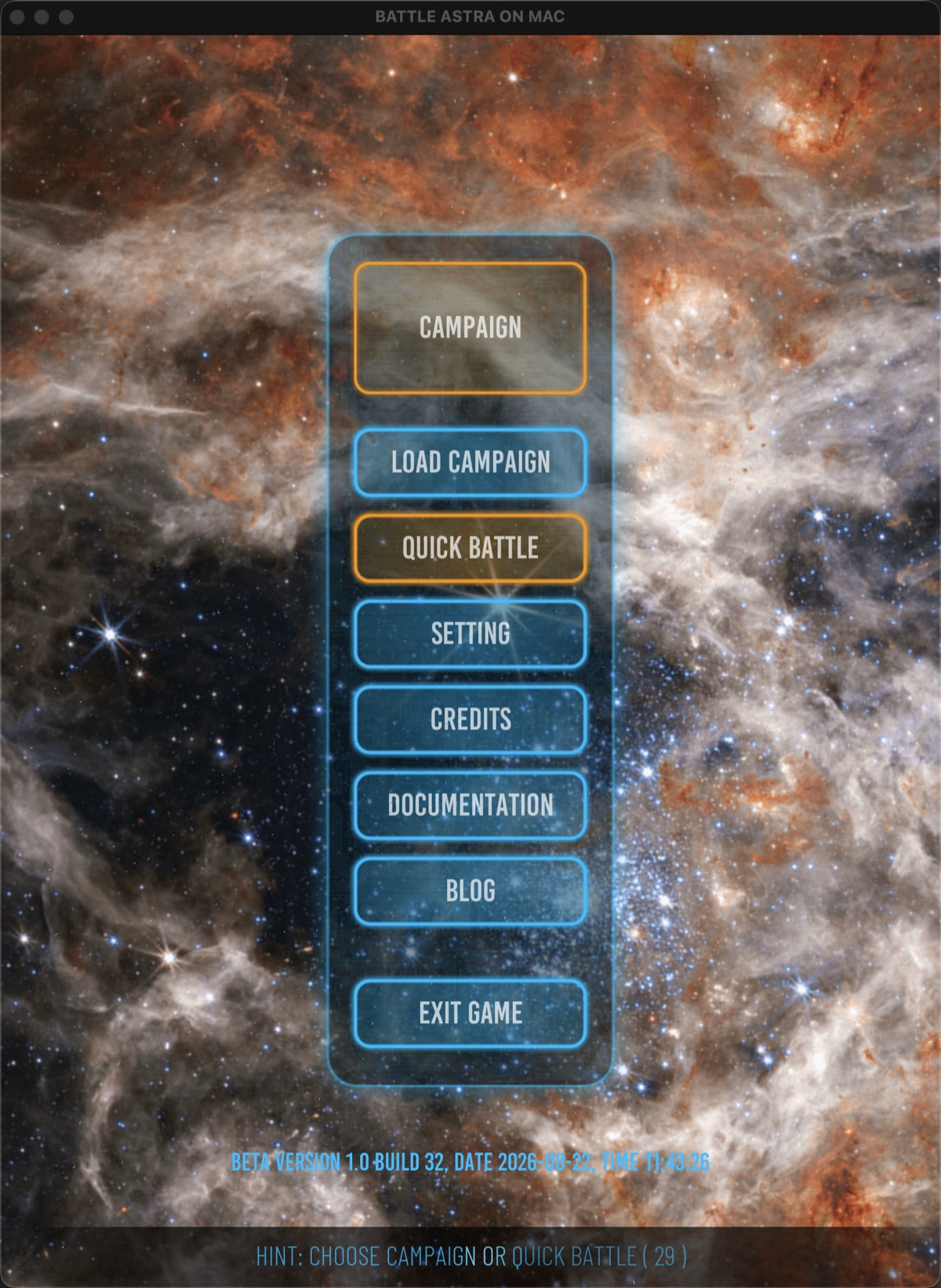
The start screen
After the intro—or immediately when the intro is skipped—the start screen presents the main ways to enter or configure the game.
Campaign
Open the campaign setup and prepare a full strategic war.
Load Campaign
Choose a previously saved campaign and return to its war map.
Quick Battle
Set up a single sector battle without using the campaign map.
Game Settings
Set audio, Play Intro, Reset Tutorial, and diagnostic export preferences.
Documentation
Open this field manual in the device’s web browser.
Blog
Open the Battle Astra development blog in the device’s web browser.
TACTICAL START
Begin a quick battle
Open the Quick Battle Guide: setup through victory →
Quick battles are self-contained skirmishes fought on a hexagonal sector map. They are the fastest way to learn ship movement, power allocation, targeting, and combat.
- 1
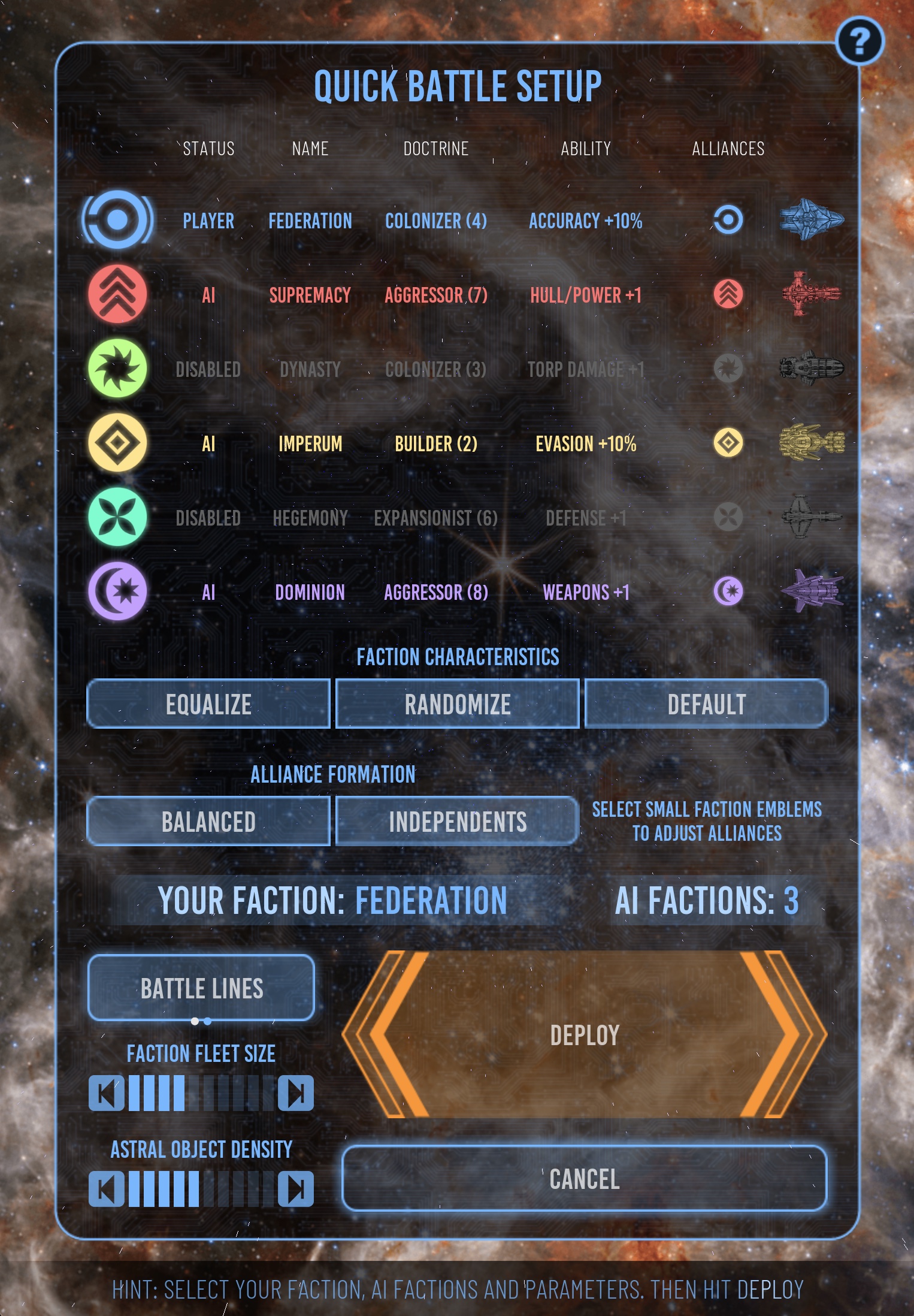
Choose the factions
Select between two and six participating factions. The faction marked PLAYER is yours; the others are controlled by the AI. Select anywhere on a row to add or remove a faction. The first active faction is the player. To choose another, deselect the current player, then select the new faction first.
- 2
Review the roster
The table identifies each faction’s doctrine, special ability, and ship design. Disabled factions remain visible but do not participate.
- 3
Adjust factions and alliances
Use Equalize, Randomize, or Default for faction characteristics. With more than two factions, use Balanced, Independents, and the small alliance-leader emblems to arrange sides.
- 4
Set battle conditions
Set faction fleet size and astral-object density. Battle Lines groups each faction’s ships together; Random Start distributes their starting positions.
- 5
Deploy
Select Deploy to create the sector and begin the battle. Select Cancel to return to the start screen.
STRATEGIC START
Begin a campaign war
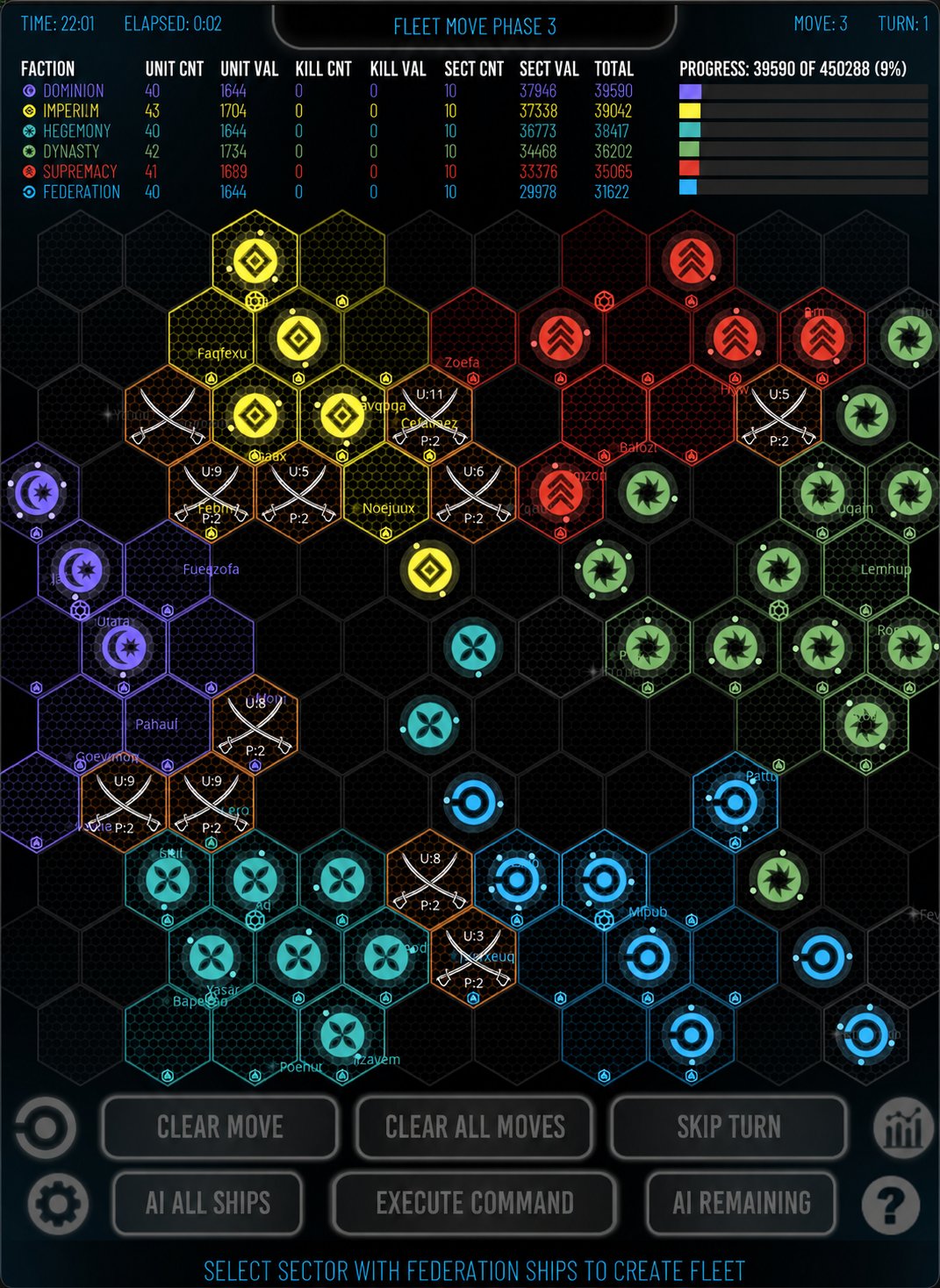
A campaign adds the region map, fleet planning, territory, scoring, faction elimination, end-of-turn ship construction, and a continuing war state around the tactical battle system.
- 1
Choose the active roster
Select the factions that will participate. One is marked PLAYER; every other active faction is marked AI. At least two factions are required.
- 2
Review factions and alliances
Each faction has a doctrine, a special ability, and a ship design. Randomize, Default, and Equalize change faction characteristics without changing alliances. Use Balanced, Independents, and the small alliance-leader emblems to arrange sides.
- 3
Set the scale
Faction fleet size controls overall starting strength. Astral-object density controls how heavily the region is populated with stars, planets, and other objects.
- 4
Choose placement and victory
Use Battle Lines or Random Start, then choose Score or Elimination as the campaign’s victory mode.
- 5
Deploy the war
Select Deploy to build the region, distribute the factions, and open the war map.
In both setup screens, Balanced creates two equal alliances and Independents separates every active faction. Select a small alliance-leader emblem to fine-tune the arrangement. In Campaign Setup, Fog of War limits information to sectors explored or detected by your alliance; disable it to see the whole quadrant from the start.
STATUS identifies your faction as PLAYER during setup. The first active faction is yours. Faction color is then used throughout the interface to identify your sectors, fleets, ships, controls, and highlights.
RETURN TO COMMAND
Load a saved campaign
Select Load Campaign on the start screen to display the available campaign saves. Choose a campaign to restore its map and war state.
Campaigns are normally autosaved after a completed turn, when no fleet routes remain unresolved. A named save can also be created from the war settings drawer.
IN-GAME GUIDANCE
Tutorial cards and help
Select Close or touch outside a tutorial card to dismiss it. Select Do Not Show This Message Again before closing to hide that specific card.
Drag long cards or their right-hand scrollbar to read more. Reset Tutorial in Game Settings restores all hidden cards; it is disabled when none are hidden.
The bottom hint follows the current situation. The Field Manual icon opens help in your browser for the screen you are using.