CHAPTER 08
Battle Map
The battle map turns one campaign sector into a tactical field of 73 zones where position, facing, obstacles, power, and initiative matter.
TACTICAL FIELD
A sector contains 73 zones
Ships occupy individual hexagonal zones inside the selected campaign sector. Edge zones provide entrances and possible retreat exits to neighboring campaign sectors.
Stars, planets, and other astral objects occupy zones, contribute to sector value, and can block movement or lines of fire. Ships cannot occupy the same zone.

BATTLE STATUS
Initiative and round information
Initiative order
Faction emblems run top to bottom in arrival order. A pointer marks the active faction, and alliance diamonds identify allied factions.
Moves and ships
Below each emblem, the left number counts unmoved units and the right number counts total units. A checkmark means the faction completed the round; an X means it was eliminated from the sector.
Battle count
Campaign battles can show how many contested sectors remain in the current resolution phase.
Action icon
The lower action display identifies movement, firing, repair, resolving, or the winning faction.
COMBAT HUDS
Attacker on the left, target on the right
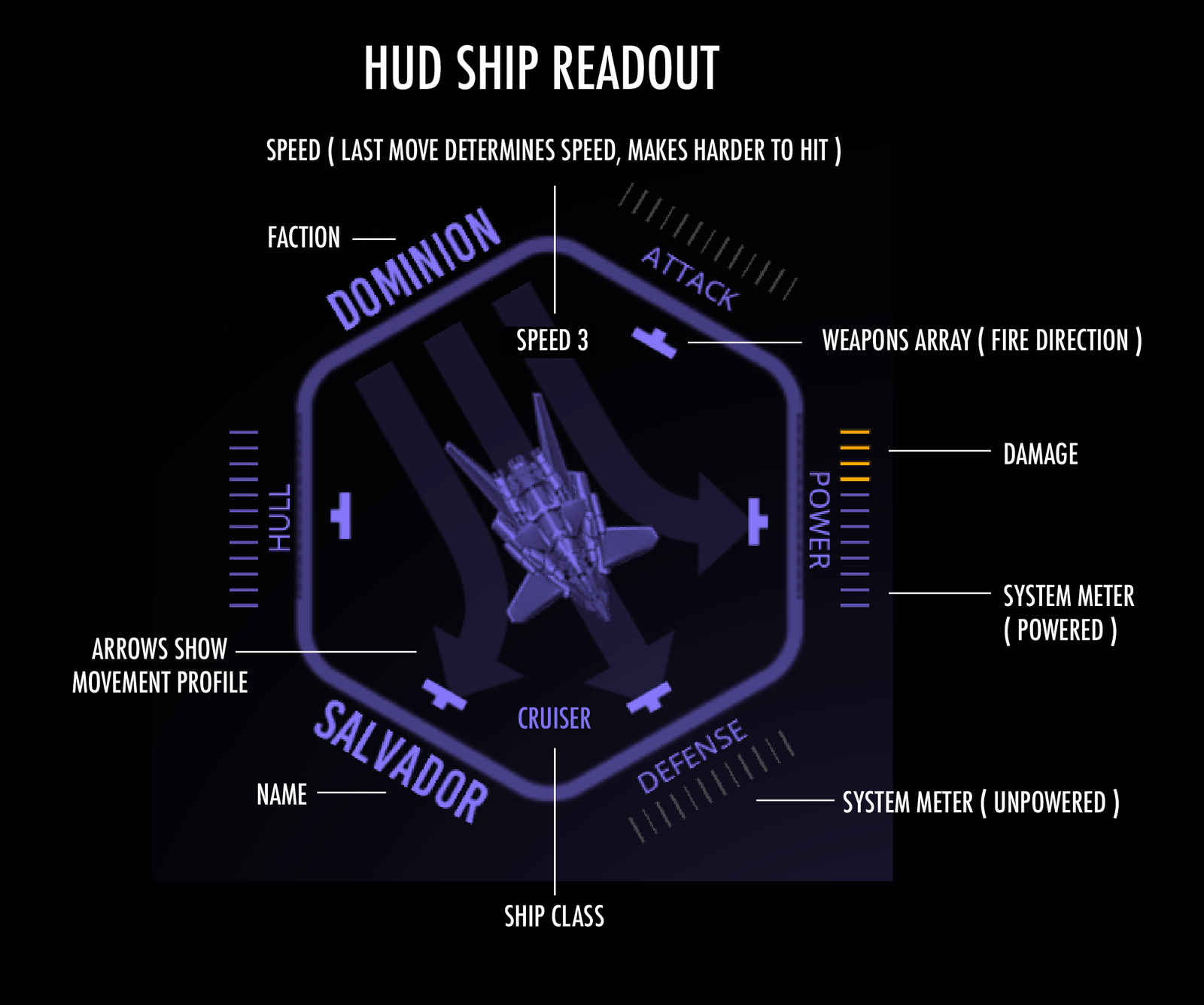
The left HUD shows the active unit with its name, faction, class, and system levels. The right HUD shows a selected unit or the active unit’s current target.
Healthy or charged systems use the faction’s interface color; damage uses its warning color. Select a ship HUD to open the enlarged Ship Inspector, then touch outside to close it.
The enlarged readout shows movement profile, firing arrays, speed, and system condition. Speed reflects the last movement and affects how hard the ship is to hit.
MAP SELECTION
Highlights explain what is selected
Active ship
The selected player ship flashes and changes scale. Legal movement zones appear only during direct player control.
Target
Crosshairs, a pulsing dotted line, faction color, and the right HUD identify the currently selected target.
Out of range
An enemy can still be inspected in the target HUD even when no legal shot exists. The HUD reports OUT OF RANGE.
Astral object
Selecting an object places it in the right HUD with its type, value, and star name when applicable.
Moved friendly ship
A completed friendly unit uses a check marker rather than an invalid-selection warning.
BATTLE HISTORY
The event log
The top event log displays the newest battle event, including round changes, total attack damage, repairs, recharges, retreats, and destroyed ships.
Select the log to open its drawer and review up to thirty recent events. Select outside the open drawer to close it before interacting with the map.
SECTOR STATUS
Ownership and red alert
The large hexagonal sector-status indicator normally uses the owner’s color. During battle it switches to the alert color and pulses when Red Alert is enabled. The lower-right Red Alert icon toggles that pulse.
Astral objects obstruct movement and weapons fire. Change their purple outlines in Battle Settings. The two brightness icons adjust the map display.
QUICK BATTLE AUTOMATION
Give control to the AI
Auto Move authorizes the AI to make one move with an available unit.
In a Quick Battle, hold Auto Resolve to give the AI control of your faction. It changes to Cancel Auto. Select Cancel Auto to regain control as soon as the current action is complete.
Hold Skip Round to end your faction’s remaining activations for the round. Unused power remains assigned to defense.
BATTLE SETTINGS
Customize the tactical display
Zone Messages toggles brief messages on selected zones. Wave Scan toggles the animated movement and weapons-coverage scan. Ship Names cycles between names, classes, and unmarked ships.
Object Outline toggles purple astral-object outlines. Zone IDs cycles between no labels, numbers, and coordinates. Combat Text toggles damage, repair, and event feedback; Back Stars toggles the moving starfield.
Battle Move Speed changes animation duration only, not movement range or combat rules. Voice, Music, and Sound Effects are synchronized with the other settings pages. Close Panel or a touch outside returns to the map.