CHAPTER 06
Fleet Orders
Fleet orders separate planning from execution: assemble mobile ships, choose legal destinations, review every route, and commit the phase when ready.
START FLEET MENU
Assemble a fleet
- 1
Select an owned sector
Choose a sector containing movable player ships and no battle lock.
- 2
Choose the ships
The menu begins with available mobile ships selected. Select a ship to remove it from the fleet; select it again to add it back.
- 3
Confirm the fleet
Select the arrow in the menu to deploy the selected fleet and reveal valid destinations.
A fleet and a faction’s total mobile force in one sector are limited to six ships. Stations and outposts are stationary and can never join a fleet.
SECTOR INSPECTOR
Select ships on the tactical map
The magnifying-glass control in the start fleet menu opens the same sector as an inspector map. Every currently selected fleet ship is highlighted.
Select ships on the inspector to add or remove them from the fleet. Closing the inspector restores the start menu with the revised selection. If no ships remain selected, the fleet menu closes.
PLOT THE ROUTE
Choose and lock a destination
- 1
Read valid moves
Destination markers identify sectors the fleet can legally reach in the current move.
- 2
Choose a sector
Select a valid destination to open the destination fleet menu and review the moving force.
- 3
Inspect or lock
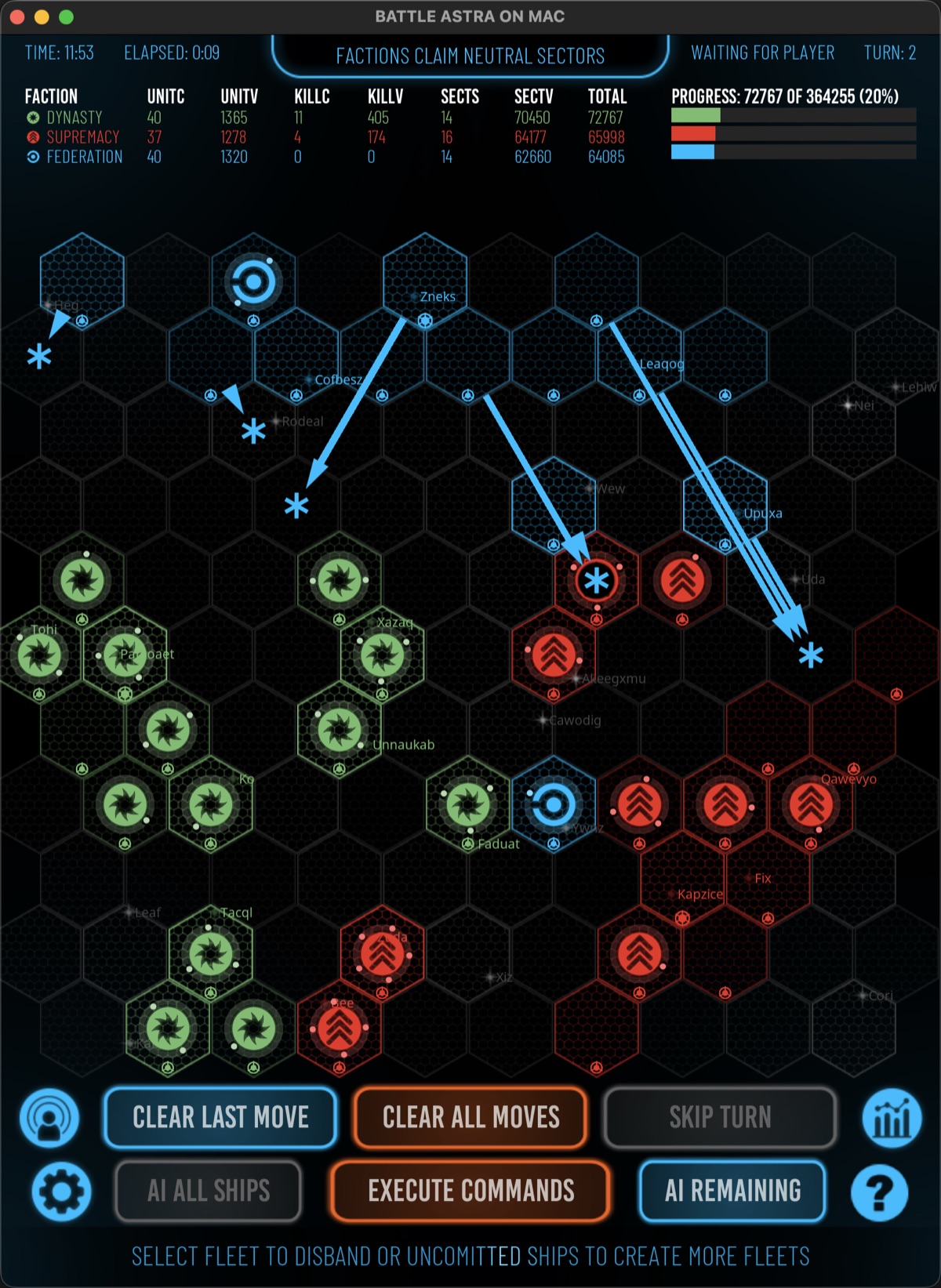
Select a valid destination, then hold the lock button to commit the movement. An arrow marks the planned route.
WAR CONTROLS
Review, cancel, or complete planning
Clear Move
Recall the most recently created locked fleet. Repeated selections work backward through the player’s order list.
Clear All Moves
Cancel every player fleet order and restore all affected ships to their origin sectors.
AI Remaining
Plan orders for player ships that have not already been assigned to a fleet.
AI All Ships
Hold AI All Ships to have the AI plan moves for all your available units.
Execute Command
Let AI factions plan, then move all fleets in waves. Faction order is randomized for each movement wave.
Skip Turn
Hold Skip Turn to leave the remaining player ships unmoved.
WHY AN ORDER IS BLOCKED
Movement restrictions
A fleet cannot move a station or outpost, leave a sector already locked for battle, exceed the six-ship faction limit at its destination, or enter a sector whose tactical entrance cannot accept the arriving ships.
Astral objects can block the required entry zones. When that happens, the order is rejected before execution and the game identifies the affected sector so the player can choose another destination.
Once two hostile factions occupy a sector, all their ships there remain committed until the battle is resolved.
SECTOR INSPECTOR
Inspect contents and exits
The inspector shows ships, stations, astral objects, and exits without advancing the war or changing the war-map state. Select an object for its information: friendly units appear in the left HUD and enemy units in the right HUD in faction color.
Select an empty exit to see its destination sector in the right HUD. Blocked exits are identified there.
If your ships are present, select them to add or remove them from the current fleet. The fleet summary appears between the HUDs. Close the inspector, then issue movement orders on the war map. Brightness, settings, and help controls remain available.